Quick Guide: Print System for Tournament Staff
This page summarizes the on-site workflow for using the print system.
Goal
- Provide clear notices for participants
- Print match slips for courts
- Collect and enter results reliably
What can be printed
- Current standings
- Next matches
- Single match slip
- Round bundle (open matches by default)
Court system incl. automation
- The Courts tab shows per-court status, running match and next match.
- Court status can be set manually: Clear (available), Block (unavailable).
- During normal operation, court assignments are updated automatically from planned/running matches.
- Blocked courts are excluded from automatic assignment of new matches.

Before tournament start
- Select the tournament.
- Optionally configure print settings (language, paper, layout, orientation, QR, header/footer).
- Save settings.
During the tournament
- At round start: print the round bundle and distribute slips.
- For notice boards: print current standings and next matches.
- Collect slips and transfer results in the matches view.
QR links and match IDs
- Every slip contains a match ID:
M-R<round>-<id>. - Optional QR links open the deep-link for the match.
- QR links are protected (signature + expiry timestamp).
- Tampered or expired QR links are rejected.
QR view for players and spectators (Notice Preview)
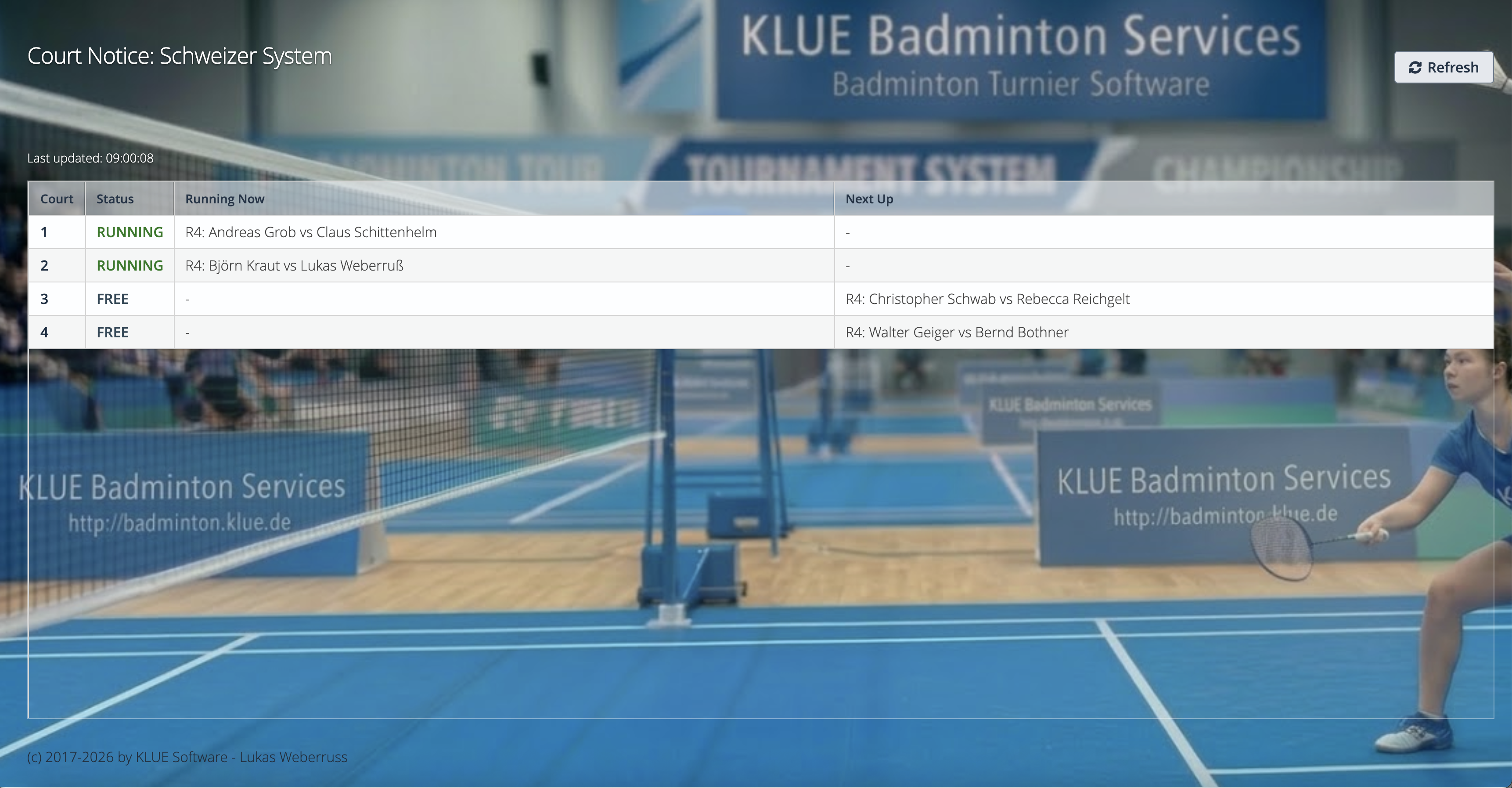
- Use Open Notice Preview to generate a public, read-only notice view.
- The notice view shows live court information: court, status, running now, next up.
- The page is suitable for mobile phones, courtside usage and display screens.
- Access uses signed links with expiry; after expiry a new link must be generated.
Quick checklist
- Correct tournament selected
- Print settings checked
- Round bundle printed
- Notice board printouts prepared
- Responsible person for result entry assigned